
Creating and Editing a Page for your Website is Easy
- Click on "Create a page" in the control panel on the left of your screen.
- Fill in the required fields.
- Select which navigation this page belongs to.
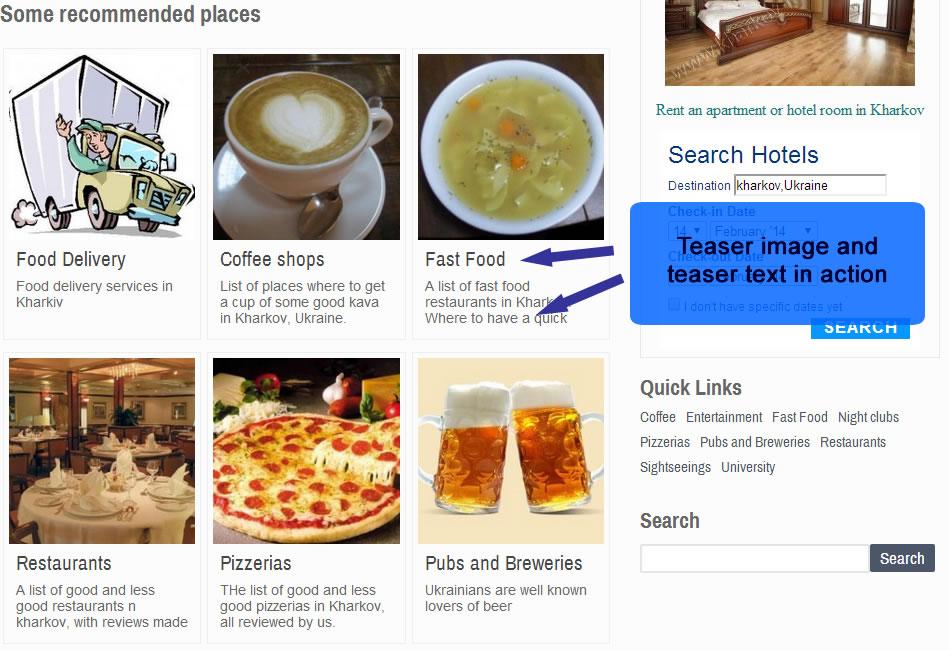
- Input your teaser text and upload you teaser picture for later use in a featured area or search result
- click done, and voila, your page is ready to be edited.
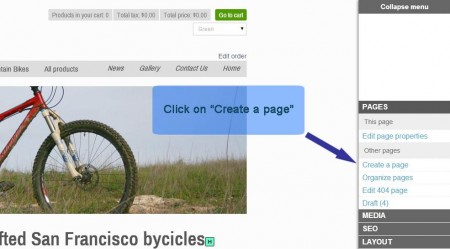
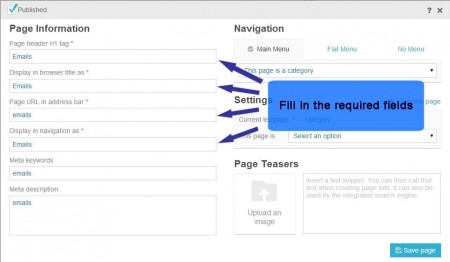
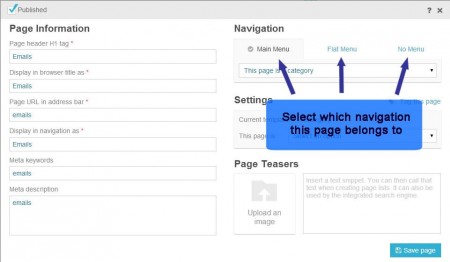
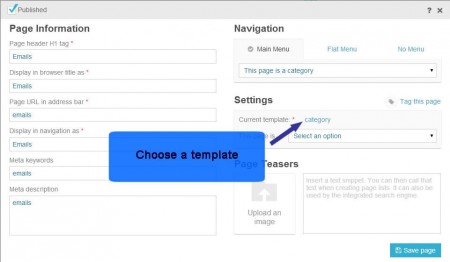
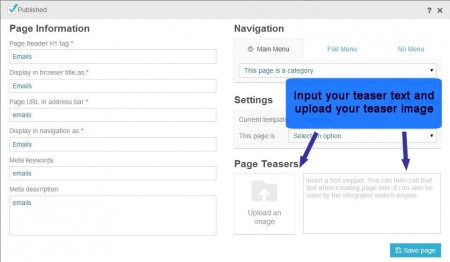
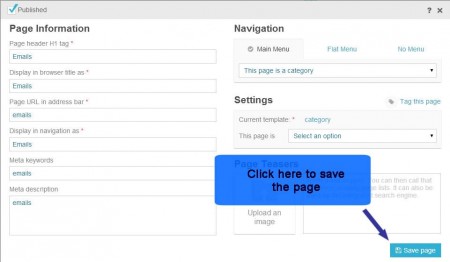
Screencast showing how to create a page
How to update a page
- To change a page's properties, go to the page you want to change and click "Edit page properties" in the control panel on the left of your screen.
- To delete a page, simply go to the page you want to delete and click "Delete this page" in the control panel on the left of your screen.
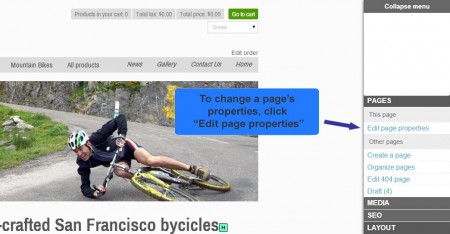
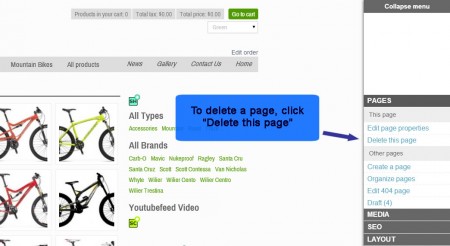
Screencast showing how to update a page
Screencast showing how to delete a page
Text and image teasers. Use them!
Text and images teasers are very important and allow for great flexibility in your design.
You will use them in the following context:
- -> Show a list of your categories landing pages with their respective images and text.
- -> Shows a list of pages in the current categories. Same thing it will show a nice list of those pages accompanied by their teaser images and text.
- featured areas (floating menus): You can place very good looking floating menus throughout your site in a few clicks.
- -> brings the main menu (Categories/pages) with all pages featuring their images.